Google Maps tips improve navigation and safety on Android Auto
Explore hidden Android Auto features that help drivers modify routes, improve navigation accuracy, and reduce distractions through personalized settings.

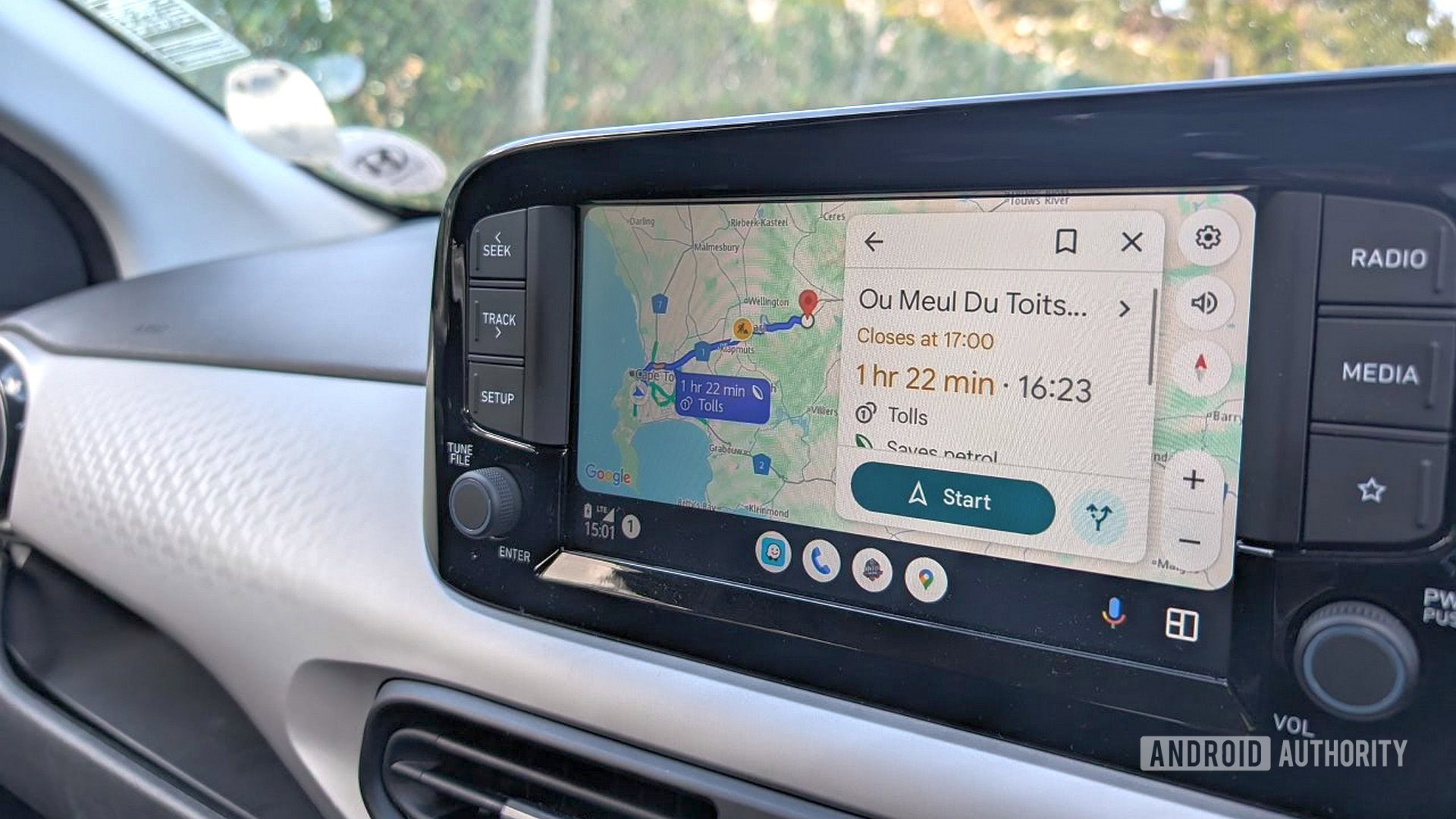
Drivers using Android Auto now have access to a suite of refined tools designed to streamline navigation and bolster road safety. As reliance on digital cockpit systems grows, recent updates and established hidden features allow users to move beyond basic turn-by-turn directions toward a more personalized and intuitive experience. These improvements focus on reducing manual input—a primary source of driver distraction—while increasing the depth of information available during travel.
Enhancing Navigation Control
A critical shift in the platform is the ability to modify routes and add stops directly from the car's interface. According to en.todoandroid.es, this change addresses a long-standing point of friction: the need to stop the vehicle or use a handheld device to alter a destination. Users can now reorder existing stops or search for nearby locations without exiting the navigation flow.
Related media


For those navigating complex environments, manual maneuver anticipation is a key safety feature. By sliding a finger over the navigation bubble at the top of the interface, drivers can preview the entire sequence of upcoming turns and lane changes. As noted by En, this allows for better preparation on highways and roundabouts without requiring users to zoom in and out of the map manually.
Advanced Customization and Connectivity
Performance in challenging environments, such as tunnels, has also seen improvement. Yahoo Tech and other sources highlight the "Bluetooth Tunnel Beacons" feature. When enabled in the mobile app's navigation settings, this allows the system to maintain location accuracy in areas where GPS signals typically drop, such as underground passages or dense city centers.
Visual aids can further refine the experience. Users can activate a 3D view by adjusting the layers menu on their connected phone, which renders city structures in relief. This setting persists when connected to the vehicle, providing better landmark recognition in urban areas. Additionally, drivers can now personalize their vehicle icon’s appearance and color via the mobile app, contributing to a more tailored interface.
Optimization Checklist for Drivers
- Pre-load Routes: Enter destinations on your mobile device before connecting to ensure a seamless departure and avoid typing on the dashboard.
- Organize App Launcher: Long-press the six-dot icon in your settings to pin essential apps, such as music or messaging, to the top of your car's screen.
- Configure Notifications: Privacy-conscious users can adjust settings to display only the sender's name for incoming messages, preventing full text previews from appearing on the dashboard.
- Utilize Routines: Create custom voice commands (e.g., "Time for work") that trigger a sequence of actions like playing a playlist, sending an arrival text, and starting navigation.
- Developer Settings: Access a deeper configuration menu by tapping the version number ten times, which allows for adjustments like video resolution optimization.
What to Watch Next
As the platform continues to evolve, developers are focusing on "Coolwalk" multi-tile layouts that allow users to display navigation and entertainment apps simultaneously. deeper integration with services like Google Calendar is expected to become more prevalent, allowing the system to suggest routes to upcoming appointments automatically. Drivers should keep their mobile apps updated to the latest versions to ensure these features remain compatible with their vehicle's infotainment system.
For more updates on connectivity, consult our ongoing technology coverage.
How significant is this development?
Contribute your assessment to the aggregated reader intelligence ledger.
Archypedia is dedicated to independent, evidence-backed reporting. This briefing was synthesized from primary source reporting, corroborated across independent newsrooms, and verified against our Editorial Standards.
Transparency record
Evidence behind this report
This report synthesizes 5 distinct sources. Open the source ledger below to compare the underlying coverage.
Prepared under the Archypedia Editorial Policy by the Niko Vale editorial desk profile. AI-assisted tools may support drafting and verification; public accountability remains with Archypedia. Report an error.