Microsoft releases new ISO files for the latest Windows 11 preview builds – Neowin
Microsoft has officially expanded access to its latest experimental iterations of Windows 11 by releasing new ISO files for the most recent preview builds. For the average user, Windows updates typically arrive as seamless background downloads via Windows Update. However, for developers, power users and system architects, the release of a standalone ISO (International Organization for Standardization) image is a critical event. It allows for clean installations, the creation of virtual machines (VMs) for isolated testing, and a way to bypass the potential “baggage” that accumulates during iterative OS updates.
This latest move comes at a pivotal moment for Windows 11. While the operating system has matured significantly since its 2021 debut, Microsoft continues to refine the user interface (UI) and core system efficiencies based on telemetry and direct feedback from the Windows Insider Program. The current wave of updates is particularly noteworthy, as it addresses some of the most persistent complaints regarding the Start menu’s rigidity and the friction associated with system-wide search.
The Significance of Preview ISO Availability
When Microsoft releases a preview build, It’s usually distributed through the “Windows Insider” channels—namely the Canary, Dev, and Beta channels. While these are easily accessible via the Settings app, the provision of a full ISO file changes the utility of these builds. A clean install from an ISO ensures that the user is experiencing the OS exactly as Microsoft intended, without interference from old registry keys or third-party software conflicts that might plague an upgraded system.
For enterprise IT professionals, these ISOs are indispensable. They allow for the deployment of “golden images” in virtualized environments to test how new features—such as the revamped Start menu customizations—interact with proprietary corporate software before a wider rollout. By providing these files, Microsoft accelerates the feedback loop, gathering data from users who are pushing the OS to its limits in controlled environments.
The shift toward providing more frequent ISOs for preview builds signals Microsoft’s commitment to a more transparent and flexible testing phase, acknowledging that “updating in place” isn’t always the most reliable way to vet new system architecture.
Deep Dive: The Evolution of the Windows 11 Start Menu
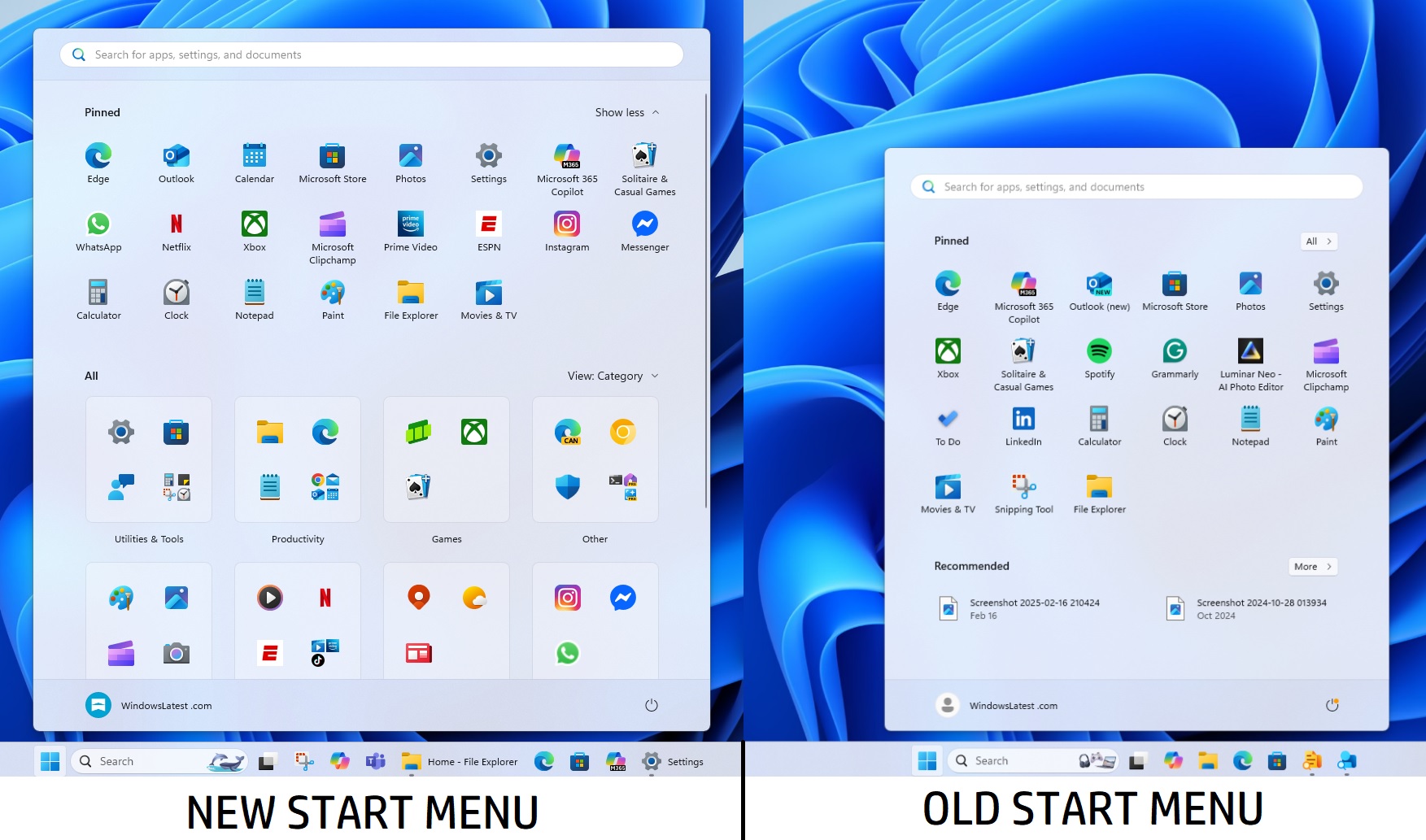
One of the most discussed elements of the latest preview builds, specifically within Build 26300.8553, is the introduction of deeper customizations for the Start menu. Since the launch of Windows 11, the Start menu has been a point of contention. The move from the “Live Tiles” of Windows 10 to a centered, simplified grid was a bold aesthetic choice, but it initially stripped away several power-user features that had existed for decades.
Reclaiming Control over Layout
In the latest preview builds, Microsoft is finally granting users more agency over how their apps are presented. The new customizations allow users to tweak the balance between “Pinned” apps and the “Recommended” section. For years, users have expressed frustration that the “Recommended” area—which shows recent files and newly installed apps—occupied a significant portion of the menu regardless of whether the user found it helpful.
The new updates allow for a more streamlined approach, enabling users to prioritize their pinned shortcuts and reduce the visual noise of the recommended content. This is not merely a cosmetic change. it is a usability improvement that reduces the cognitive load required to launch frequently used applications.
The Impact of Build 26300.8553
Build 26300.8553 serves as a benchmark for this transition. By integrating these customization options, Microsoft is moving away from a “one size fits all” philosophy and toward a modular UI. This reflects a broader industry trend where operating systems are expected to adapt to the user’s workflow rather than forcing the user to adapt to the system’s constraints.
| Feature | Previous Windows 11 Iteration | Latest Preview Build (26300.8553) |
|---|---|---|
| Start Menu Layout | Fixed ratio of Pinned vs. Recommended | Customizable proportions/visibility |
| App Discovery | Static grid based on installation | Enhanced flexibility in pinning and grouping |
| User Agency | Limited UI modifications | Increased control over visual real estate |
Solving the Search Friction: The Two-Character Breakthrough
Parallel to the UI changes in the Start menu, Microsoft is tackling one of the most pervasive “micro-annoyances” in Windows 11: the search latency and input requirements. For a significant period, users reported that the Windows Search felt sluggish or required a disproportionate amount of typing before the system could accurately predict the desired file or application.
The latest updates introduce a significant optimization that allows users to find files and apps with as few as two characters. While this may seem like a minor tweak, in the context of daily productivity, it is a massive win. Search is the primary gateway to the OS for many users; when that gateway is frictionless, the entire experience feels faster, even if the underlying hardware remains the same.
Why This Matters for Productivity
The “two-character search” is essentially an improvement in the indexing and retrieval algorithm. By reducing the threshold for search triggers, Microsoft is decreasing the “time-to-action.” For a professional who opens dozens of different folders and applications throughout the day, saving a fraction of a second on every search adds up to a significant reduction in cumulative frustration.
This improvement specifically targets the “biggest annoyance” cited by the community: the feeling that the search bar was “fighting” the user or failing to surface obvious results until a long string of text was entered. By streamlining this process, Microsoft is bringing the native search experience closer to the speed of third-party tools like Everything or PowerToys Run.
Technical Implementation: How to Use the New ISOs
For those looking to leverage these new ISO files, the process requires a bit more technical foresight than a standard update. Because these are preview builds, they are intended for those who can tolerate the occasional bug or system instability.
Step-by-Step Deployment Strategy
- Backup Critical Data: Before performing a clean install from an ISO, ensure all personal files are backed up to an external drive or cloud service. Preview builds can occasionally lead to data corruption.
- Create Bootable Media: Use tools like Rufus or Ventoy to flash the ISO onto a USB drive. This allows you to boot the hardware directly into the Windows installer.
- Virtual Machine Testing: For those who want the new Start menu and search features without risking their main workstation, software like VMware or VirtualBox is recommended. You can mount the ISO as a virtual disk and test the build in a sandbox.
- Insider Account Alignment: Ensure your Microsoft account is registered for the appropriate Insider channel (Dev or Beta) to receive subsequent over-the-air (OTA) updates after the initial ISO installation.
For a deeper look at optimizing your system, you might find a related explainer on Windows 11 performance tuning useful to ensure your hardware is fully leveraging these new builds.
The Broader Context: Microsoft’s Iterative Philosophy
The release of these ISOs and the accompanying feature updates are part of a larger strategic shift at Microsoft. For years, Windows updates were monolithic events—massive “Service Packs” that arrived once every few years. Today, Windows is a “service,” evolving in real-time.
The Feedback Loop
The Windows Insider Program is the engine driving this evolution. By releasing preview builds to a subset of users, Microsoft can identify “pain points” (like the search annoyance) and “desires” (like Start menu customization) before the code reaches hundreds of millions of stable users. This reduces the risk of a catastrophic update and allows for a more agile response to user criticism.
Competing in the Modern OS Landscape
Microsoft is not operating in a vacuum. With the rise of highly customizable Linux distributions and the seamless integration of macOS, Windows must maintain a balance between enterprise stability and consumer flexibility. The move toward allowing users to customize the Start menu is a direct acknowledgement that the “minimalist” trend of the early 2020s has hit a ceiling, and users are now craving functional density over empty space.
Common Misconceptions Regarding Preview Builds
There is often confusion among general users regarding the difference between a “Preview Build” and a “Stable Release.” It is important to clarify these distinctions to avoid system failures.
- “Preview means Beta”: While often used interchangeably, preview builds can range from the “Beta” channel (relatively stable) to the “Canary” channel (highly experimental and potentially unstable).
- “ISOs are only for new PCs”: Many believe ISOs are only for fresh hardware. In reality, they are the best way to “refresh” a sluggish OS or test a new version without permanently altering the primary drive.
- “These features are available to everyone”: It is crucial to remember that features in Build 26300.8553 are previews. They may be changed, removed, or delayed before they reach the general public in a stable update.
Analyzing the Long-Term Impact on UX
If Microsoft continues this trajectory, we can expect Windows 11 to become increasingly modular. The focus is shifting from what the OS can do to how the user wants to interact with it. The reduction of search friction and the opening up of the Start menu are early indicators of a “User-First” design pivot.
In the long term, this could lead to a version of Windows where the UI is almost entirely fluid—where the OS learns the user’s habits and suggests layout changes automatically, or allows for total “skinning” of the interface without the need for unstable third-party modifications.
For those managing multiple devices, a guide to Windows 11 multi-monitor setups could complement these UI improvements by helping you organize your newly customized Start menu across a larger digital canvas.
Frequently Asked Questions
Can I go back to a stable version of Windows 11 after installing a preview ISO?
Yes, but not through a simple “uninstall” button. Because an ISO installation is a clean install, returning to a stable build typically requires another clean installation of the stable version, meaning you will need to wipe your drive and reinstall your applications.

Is the 2-character search available in the stable version of Windows 11?
Currently, this feature is being tested in the preview builds. It will likely move to the stable channel after Microsoft verifies its stability and performance across various hardware configurations.
Do I need a special license to use the Windows 11 preview ISOs?
You need a valid Windows 11 license and a Microsoft account registered for the Windows Insider Program. While the ISOs can be downloaded, activation still requires a legitimate product key or a digital license linked to your account.
Which Insider channel is best for someone who wants new features but needs a stable PC?
The Beta channel is generally the safest bet. It contains features that are much closer to final release and are significantly more stable than those found in the Dev or Canary channels.
Will these Start menu customizations affect my system performance?
No. These are UI-level changes and do not consume significant additional system resources. In fact, by reducing unnecessary elements in the Start menu, some users may find the interface feels more responsive.
As Microsoft continues to refine the Windows 11 experience, the release of these ISOs ensures that the most enthusiastic and technical members of the community can lead the way. Whether it is the precision of a two-character search or the personalization of the Start menu, the trajectory is clear: Windows is becoming more adaptable, more responsive, and more open to the needs of its users. Keeping an eye on the build numbers and the Insider feedback forums will be key for anyone wanting to stay ahead of the curve in the Windows ecosystem.
